# Creating a community package
In this lesson we will learn how to create a "community package".
This is not an official term, but essentially it's a "distribution package" that is
ready for sharing with a wider audience and build a community around it.
Some examples of community packages that have been created by this community are:
[`icepyx`](https://github.com/icesat2py/icepyx) and [planetsca](https://github.com/DSHydro/planetsca).
## The elements of a Python package
In the last two lessons we've established that a Python package is a directory that contains a `__init__.py` file.
However, wholistically, a Python package or library contains more than that.
In our context we will be creating a "Scientific Python Library", since the software we are creating is for scientific purposes.
```{figure-md} package-components
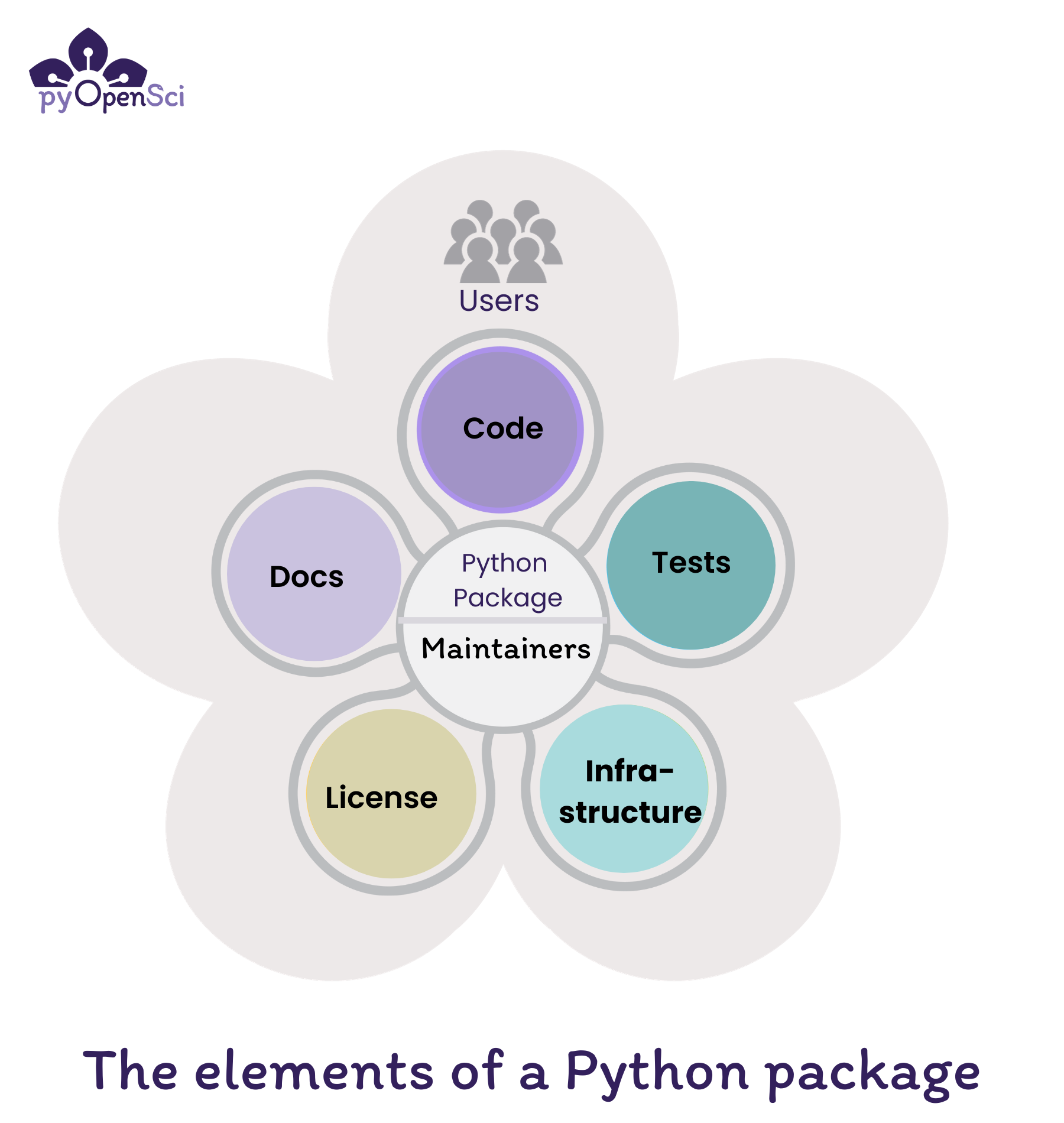 The elements of a Python package include code, documentation, tests,
an OSI-approved license and infrastructure.
Maintainers are at the core making sure everything works and is up to
date while fixing bugs and addressing user concerns.
Source: [pyOpenSci](https://www.pyopensci.org/python-package-guide/tutorials/intro.html#the-elements-of-a-python-package)
```
A Scientific Python Library typically contains the following elements:
- **Code**: Functions and classes that provide functionality for a user of your package
- **Docs**: Installation instructions, tutorials, API references,
and contributing guides that help users get started using your package and contributors and maintainers fix bugs and maintain the package.
- **Tests**: that make sure your code works as it should and makes it easier for you and others to contribute to, modify and update the code in the future.
- **License**: An open source license, or license that is OSI approved, refers to an license that allows others to use your package.
It also provides legal direction regarding how elements of the package can and can’t be reused.
- **Infrastructure**: Automates updates, publication workflows, code style checks, and runs test suites.
In the heart of a Scientific Python Library is you and your community, which are called the **Maintainers** of the package.
```{admonition} A note on pyOpenSci
This tutorial borrowed a lot of content from the [pyOpenSci Python Package Guide](https://www.pyopensci.org/python-package-guide/), as those resources are maintained by a whole community of people.
pyOpenSci is a diverse community of people interested in building a community of practice around scientific software written in Python. They lead an [open peer review process](https://www.pyopensci.org/software-peer-review/our-process/how-review-works.html) run by a community of dedicated volunteers, where scientists vet software code, documentation and infrastructure.
pyOpenSci partners with the [Journal of Open Source Software](https://joss.theoj.org/) (JOSS) so that if your package is accepted by pyOpenSci after a full review,
and in scope for JOSS, it will be fast-tracked through JOSS’ review process.
pyOpenSci performs an [initial set of editor checks](https://www.pyopensci.org/software-peer-review/how-to/editor-in-chief-guide.html#editor-checklist-template) for any package submitted to us for peer review. You may find these checks useful as you create your package as a baseline for things that you package should have.
```
### Full Scientific Python Library Directory Structure
The full directory structure of a Scientific Python Library is shown below with a **src/** layout.
Source: [pyOpenSci](https://www.pyopensci.org/python-package-guide/package-structure-code/python-package-structure.html#python-package-structure-for-scientific-python-projects):
```console
myPackageRepoName
├── CHANGELOG.md ┐
├── CODE_OF_CONDUCT.md │
├── CONTRIBUTING.md │
├── docs │ Package documentation
│ └── index.md
│ └── ... │
├── LICENSE │
├── README.md ┘
├── pyproject.toml ] Package metadata and build configuration
├── src ┐
│ └── myPackage │
│ ├── __init__.py │ Package source code
│ ├── moduleA.py │
│ └── moduleB.py ┘
└── tests ┐
└── ... ┘ Package tests
```
Note the location of the following directories in the example above:
- **docs/:** this directory contains your user-facing documentation website. In a **src/** layout docs/ are normally included at the same directory level of the **src/** folder.
- **tests/** this directory contains the tests for your project code. In a **src/** layout tests are normally included at the same directory level of the **src/** folder.
- **src/myPackage/**: this is the directory that contains the code for your Python project. "myPackage" is normally your project's name.
Also in the above example, notice that all of the core documentation files that
are required to live in the root of your project directory.
These files include:
- CHANGELOG.md
- LICENSE
- README.md
```{note}
The last two files `CODE_OF_CONDUCT.md` and `CONTRIBUTING.md` are called ["community health files"](https://docs.github.com/en/communities/setting-up-your-project-for-healthy-contributions/creating-a-default-community-health-file).
These files provide guidance and templates for maintaining a healthy and collaborative open source project.
There are additional community health files that you can add, but the two files are the minimum recommended set.
```
Now that you are aware of the different pieces of a "Scientific Python Library",
let's start creating a community package from our simple example by adding these elements.
Since our package is so simple, we will not be adding each of the element extensively,
but hopefully after this lesson, you'll be able to incorporate these elements
into your own projects using the resources provided in this lesson.
## Step 1: Code
This element is already covered in the previous lessons, where we created a simple "eggsample" Python package.
Great job!
## Step 2: Docs
Documentation is an important part of a Python package.
It helps users understand how to use your package and how to contribute to it.
At the very least, your package should have a `README.md` file that explains what your package does,
how to install it, and how to use it.
So let's do that.
Create a `README.md` file in the root of your package directory and add the following content:
`````{admonition} File: README.md
:class: note dropdown
````{code-block} markdown
# eggsample
The eggsample from an eggsellent cook.
## Installation
You can install the package using `pip` directly from this repository:
```bash
pip install git+https://github.com//eggsample_repo.git
```
## Usage
From the terminal, you can run the following command to run the `eggsample` program:
```bash
eggsample
```
````
`````
In order for this README to also render on PyPi when you're ready to publish your package,
let's add this file as part of the Python package metadata.
Append the following to your `project` table in the `pyproject.toml` file:
`````{admonition} File: pyproject.toml
:class: note
```toml
readme = "README.md"
```
`````
Once you've added the `README.md` file and updated the `pyproject.toml` file,
you can then push your changes to your repository.
Great! Now you have a very basic documentation for your package.
You can add more things in the `README.md` file like badges,
links to the other documentation, etc.
Think of this as the gateway to your Scientific Python library sea of knowledge.
### The `docs/` directory
We will not be creating a full documentation website in this lesson,
however, we highly encourage you to do so for your own projects.
1. Review the [documentation](https://www.pyopensci.org/python-package-guide/documentation/index.html#)
concepts by pyOpenSci to get started with creating documentation for your package.
2. Follow this [tutorial](https://learn.scientific-python.org/development/guides/docs/) by Scientific Python community to setup documentation for your package.
## Step 3: Tests
Tests are a **critical part** of any software to ensure its robustness and reproducibility.
If you can reproduce the same results with the same inputs,
over and over again, then you can be confident that your software is working as expected.
When you make changes to your software, the tests will help you catch any bugs or expected failure
that you may have introduced.
After a change, two possible outcomes can happen:
1. The tests pass: This means that the changes you made did not break the existing functionality.
2. The tests fail: This means that the changes you made broke the existing functionality.
The types of failure is important to understand, as it determines your next set of actions.
- If the failure is expected, then you can update the tests to reflect the new expected behavior.
- If the failure is unexpected, then you can debug the issue and fix the code.
The outcomes above are very simplistic, but the idea is that tests help you catch bugs early and
ensure that your software is working as expected.
For a more detailed guide on tests, you can refer to the [pyOpenSci testing guide](https://www.pyopensci.org/python-package-guide/tests/index.html).
### Writing tests for the `eggsample` package
As an exercise, let's write a simple test for the `eggsample` package.
Create a `test_command_line_interface.py` file in `tests/` directory and add the following content:
`````{admonition} File: test_command_line_interface.py
```python
# import the main function from the command_line_interface module
from eggsample.command_line_interface import main
# import the condiments_tray from the eggsellent_cook module
# for later testing
from eggsample.eggsellent_cook import condiments_tray
def test_main(capsys): # capsys is a built-in pytest fixture
"""Test the main function."""
main() # call the main function
captured = capsys.readouterr() # capture the output
assert "Your food." in captured.out # check if the output contains "Your food."
assert ", ".join(condiments_tray) in captured.out # check if the output contains the condiments
```
`````
In the above test, we are testing the `main` function of the `eggsample` package.
In the previous lesson, if you recall, we've set the key `eggsample`
under the `[project.scripts]` table in the `pyproject.toml` file to point to the `main` function:
`"eggsample.command_line_interface:main"`.
So if we run that function, this is an equivalent of running the `eggsample` program from the terminal.
This type of test is called an ["end-to-end (functional) test"](https://www.pyopensci.org/python-package-guide/tests/test-types.html#end-to-end-functional-tests) because it tests the whole program.
### Running the tests with `pytest`
To run the tests, we will be using the [`pytest`](https://pypi.org/project/pytest/).
The `pytest` framework makes it easy to write small,
readable tests, and can scale to support complex functional testing for applications and libraries.
In order to use `pytest` we will need to install it.
However, we can't just install it one time, we'll need to define this as a package development dependency.
This way when someone wants to contribute to your package, they can also install the necessary dependencies
to test the package.
```{note}
`pytest` is not a *required* software dependency for running `eggsample`,
currently we don't have any software dependencies for `eggsample`.
So this development dependency is an *optional* dependency.
```
Okay, so let's add `pytest` as a development dependency to the package metadata in the `pyproject.toml` file.
Add a `[project.optional-dependencies]` table to the `pyproject.toml` file and add the following content:
`````{admonition} File: pyproject.toml
```toml
[project.optional-dependencies]
test = ["pytest>=8.3.2,<9"]
```
`````
What we've done here is we've added `pytest` as an optional dependency to the package.
The key for this optional dependency is `test` and the value is a
list of dependencies that are required for testing the package.
You can have various keys for different types of optional dependencies,
such as `docs`, `plot`, etc. This allows you to install only the dependencies
that you need for a specific task along with your required dependencies.
```{note}
As best practice, when adding package dependencies, you should specify the version range of the package.
This is to ensure that the package will work with the specified version of the dependency,
and not break with newer versions.
In our example, we've gone to the [PyPI page for pytest](https://pypi.org/project/pytest/) and found the latest version of `pytest` that is compatible with our package, which is `8.3.2`.
Then we've also specified the maximum version of `pytest` that is compatible with our package, which is `<9`.
This way if pytest releases a new major version, the package will not install that version, without us testing it first.
```
Now, let's install the development dependencies by running the following command:
```bash
pip install -e "./eggsample_repo[test]"
```
You can see above, we've added the `[test]` extra to the package installation command.
This tells `pip` to install the package along with the optional dependencies specified in the `test` key.
When you have multiple optional dependencies, you can specify them as a comma-separated list,
and mix and match them as needed, like so: `pip install -e "./eggsample_repo[test,docs]"`.
Now that we have `pytest` installed, we can run the tests by running the following command:
```bash
pytest
```
If the tests pass, you should not see any errors.
Also, `pytest` knows to look for tests in the `tests/` directory and runs any additional modules that you add to the directory and subdirectories as long as the module name starts with `test_`.
```{note}
Once running the test, `pytest` will create a `.pytest_cache/` directory in your package directory.
Let's add this directory to the `.gitignore` file to prevent it from being added to the repository.
```
At this point, if you've followed along, you've added tests to your package.
Your eggsample repo, should look roughly like this:
```console
eggsample_repo
├── .gitignore
├── README.md
├── pyproject.toml
├── src
│ └── eggsample
│ ├── __init__.py
│ ├── command_line_interface.py
│ └── eggsellent_cook.py
└── tests
└── test_command_line_interface.py
```
Great job! You've added tests to your package. Go commit and push your changes to your repository.
## Step 4: License
A license is a legal document that specifies the terms under which your package can be used.
It is important to include a license with your package to protect your work and to make it clear to others how they can use your package.
We suggest that you use a permissive license that accommodates the other most commonly used licenses in the scientific Python ecosystem ([MIT](https://opensource.org/license/mit) and [BSD-3](https://opensource.org/license/bsd-3-clause)). If you are unsure, use MIT given it’s the generally recommended license on [choosealicense.com](https://choosealicense.com/).
For more information on licenses,
you can refer to the [pyOpenSci license guide](https://www.pyopensci.org/python-package-guide/documentation/repository-files/license-files.html).
Let's add a license to the package by following the steps from [Github](https://docs.github.com/en/communities/setting-up-your-project-for-healthy-contributions/adding-a-license-to-a-repository).
Once you've added a license to your package via the Github interface,
go ahead and pull those changes to your local repository.
You should now have a `LICENSE` file in the root of your package directory.
```console
eggsample_repo
├── .gitignore
├── LICENSE
├── README.md
├── pyproject.toml
├── src
│ └── eggsample
│ ├── __init__.py
│ ├── command_line_interface.py
│ └── eggsellent_cook.py
└── tests
└── test_command_line_interface.py
```
Simply adding this file to your repository is not enough.
We need to also specify the license in the package metadata,
so that the package build backend knows to include this as part of the package distribution.
Add the following to the `[project]` table in the `pyproject.toml` file:
`````{admonition} File: pyproject.toml
```toml
license = { file = "LICENSE" }
```
`````
This is an inline table that specifies the license file for the package.
## Step 5: Infrastructure
At this point, you have a basic community package that is ready to be shared with the world.
There are instruction on how to install the package, how to use it, and how to test it.
However, there is no way to automate any of it.
Wouldn't it be nice if you could automate the installation, testing, and deployment of your package?
This is where infrastructure comes in.
There are many free services that can help you to automate these tasks.
In this tutorial, we will not be covering the details of setting up
every single infrastructures for your package, but we'd like to introduce you to some of the services that you can use, and feel free to explore them on your own.
The free services available to you when you're building an open source package are:
- [Github Actions](https://github.com/features/actions): This service integrates with your Github
repository. It allows you to automate, customize,
and execute different software development workflows directly in your repository.
- [ReadTheDocs](https://about.readthedocs.com/): This service enables you to build, host, and share documentation for your package.
- [pre-commit.ci](https://pre-commit.ci/): We don't cover [`pre-commit`](https://pre-commit.com/)
framework in this tutorial. However, `pre-commit` is a framework for creating
and running "git hook scripts". Think of this like the `pytest` framework,
but for code quality checks, before you push your code for a human review.
- [PyPI](https://pypi.org/): The Python Package Index (PyPI) is a repository of software for the Python programming language. They provide services that allow you to upload your package to their repository, so that others can install it using `pip`. For development, you can use [TestPyPI](https://test.pypi.org/), which is a separate instance of PyPI that allows you to test your package before uploading it to the main PyPI repository.
- [Zenodo](https://zenodo.org/): Zenodo is a general-purpose open-access repository.
This service allows you to archive your code and other research outputs.
When you publish a new version of your package, you can create a new
Digital Object Identifier (DOI) for that version.
This way you can easily cite your package in your research papers.
These services are free for open source projects and are widely used in the scientific Python community.
There are many more services available to you, but at the minimum the above services will help you
automate the most common tasks for your package.
### Setting up CI with Github Actions
In this section, we will show you how to setup a simple Continuous Integration (CI) pipeline for our
`eggsample` package using Github Actions. This is a practice where you automate
running the testing of your code every time you push a new commit to your repository.
Let's get started!
To setup Github Actions, you need to create a `.github/workflows/` directory in the root of your package directory.
Then create a `ci.yml` file in the `.github/workflows/` directory and add the following content:
`````{admonition} File: ci.yml
```yaml
name: CI
on:
push:
branches:
- main
pull_request:
branches:
- main
jobs:
test:
name: Package tests
runs-on: ubuntu-latest
steps:
- name: Checkout repository
uses: actions/checkout@v2
- name: Set up Python
uses: actions/setup-python@v2
with:
python-version: '3.11'
- name: Install test dependencies
run: |
pip install -e ".[test]"
- name: Run tests
run: |
pytest -vvv
```
`````
The above file is a Github Actions workflow file.
It's a YAML file that defines the configuration for a software development workflow.
Let's break down the file:
1. `name`: This is the name of the workflow.
In this case, it's called `CI` for Continuous Integration.
It's a good practice to name your workflows so that you
can easily identify them in the Github Actions dashboard.
2. `on`: This is the event that triggers the workflow. There are many different
[events](https://docs.github.com/en/actions/writing-workflows/choosing-when-your-workflow-runs/events-that-trigger-workflows)
that can trigger a workflow. For now we are just focusing on a `push` and `pull_request` event on the `main` branch.
What does this mean?
When you push a new commit to the `main` branch, the workflow will run and when you create a pull request to the `main` branch, the workflow will also run.
3. `jobs`: This is the list of jobs that the workflow will run. Remember the install and test steps we did earlier? We are going to automate those steps here.
- `test`: This is the name of the job.
- `runs-on`: This is the operating system that the job will run on, called GitHub Runners. In this case, it's `ubuntu-latest`,
GitHub has many [runners](https://docs.github.com/en/actions/using-github-hosted-runners/about-github-hosted-runners/about-github-hosted-runners#standard-github-hosted-runners-for-public-repositories) to choose from.
- `steps`: This is the list of steps that the job will run. Each step is a separate task that the job will run.
- `Checkout repository`: This step checks out the repository code.
- `Set up Python`: This step sets up Python on the runner machine.
- `Install test dependencies`: This step installs the test dependencies for the package.
- `Run tests`: This step runs the tests for the package.
When you're ready, commit and push the changes to your repository and see the magic happen.
After pushing your changes, you should see a little circle next to your latest commit that
points you to the Github Actions dashboard.
## Summary
In this lesson, we've learned how to create a community package from a simple example.
We've added a small `README.md` file, test module, a license,
and automated the testing of the package using Github Actions.
We've also introduced you to the concept of infrastructure and the services that are available to you
when you're building an open source package. You now have the tools and knowledge to
really take your package to the next level and share it with the world.
For the rest of the tutorial, go ahead and try to package your own project.
The elements of a Python package include code, documentation, tests,
an OSI-approved license and infrastructure.
Maintainers are at the core making sure everything works and is up to
date while fixing bugs and addressing user concerns.
Source: [pyOpenSci](https://www.pyopensci.org/python-package-guide/tutorials/intro.html#the-elements-of-a-python-package)
```
A Scientific Python Library typically contains the following elements:
- **Code**: Functions and classes that provide functionality for a user of your package
- **Docs**: Installation instructions, tutorials, API references,
and contributing guides that help users get started using your package and contributors and maintainers fix bugs and maintain the package.
- **Tests**: that make sure your code works as it should and makes it easier for you and others to contribute to, modify and update the code in the future.
- **License**: An open source license, or license that is OSI approved, refers to an license that allows others to use your package.
It also provides legal direction regarding how elements of the package can and can’t be reused.
- **Infrastructure**: Automates updates, publication workflows, code style checks, and runs test suites.
In the heart of a Scientific Python Library is you and your community, which are called the **Maintainers** of the package.
```{admonition} A note on pyOpenSci
This tutorial borrowed a lot of content from the [pyOpenSci Python Package Guide](https://www.pyopensci.org/python-package-guide/), as those resources are maintained by a whole community of people.
pyOpenSci is a diverse community of people interested in building a community of practice around scientific software written in Python. They lead an [open peer review process](https://www.pyopensci.org/software-peer-review/our-process/how-review-works.html) run by a community of dedicated volunteers, where scientists vet software code, documentation and infrastructure.
pyOpenSci partners with the [Journal of Open Source Software](https://joss.theoj.org/) (JOSS) so that if your package is accepted by pyOpenSci after a full review,
and in scope for JOSS, it will be fast-tracked through JOSS’ review process.
pyOpenSci performs an [initial set of editor checks](https://www.pyopensci.org/software-peer-review/how-to/editor-in-chief-guide.html#editor-checklist-template) for any package submitted to us for peer review. You may find these checks useful as you create your package as a baseline for things that you package should have.
```
### Full Scientific Python Library Directory Structure
The full directory structure of a Scientific Python Library is shown below with a **src/** layout.
Source: [pyOpenSci](https://www.pyopensci.org/python-package-guide/package-structure-code/python-package-structure.html#python-package-structure-for-scientific-python-projects):
```console
myPackageRepoName
├── CHANGELOG.md ┐
├── CODE_OF_CONDUCT.md │
├── CONTRIBUTING.md │
├── docs │ Package documentation
│ └── index.md
│ └── ... │
├── LICENSE │
├── README.md ┘
├── pyproject.toml ] Package metadata and build configuration
├── src ┐
│ └── myPackage │
│ ├── __init__.py │ Package source code
│ ├── moduleA.py │
│ └── moduleB.py ┘
└── tests ┐
└── ... ┘ Package tests
```
Note the location of the following directories in the example above:
- **docs/:** this directory contains your user-facing documentation website. In a **src/** layout docs/ are normally included at the same directory level of the **src/** folder.
- **tests/** this directory contains the tests for your project code. In a **src/** layout tests are normally included at the same directory level of the **src/** folder.
- **src/myPackage/**: this is the directory that contains the code for your Python project. "myPackage" is normally your project's name.
Also in the above example, notice that all of the core documentation files that
are required to live in the root of your project directory.
These files include:
- CHANGELOG.md
- LICENSE
- README.md
```{note}
The last two files `CODE_OF_CONDUCT.md` and `CONTRIBUTING.md` are called ["community health files"](https://docs.github.com/en/communities/setting-up-your-project-for-healthy-contributions/creating-a-default-community-health-file).
These files provide guidance and templates for maintaining a healthy and collaborative open source project.
There are additional community health files that you can add, but the two files are the minimum recommended set.
```
Now that you are aware of the different pieces of a "Scientific Python Library",
let's start creating a community package from our simple example by adding these elements.
Since our package is so simple, we will not be adding each of the element extensively,
but hopefully after this lesson, you'll be able to incorporate these elements
into your own projects using the resources provided in this lesson.
## Step 1: Code
This element is already covered in the previous lessons, where we created a simple "eggsample" Python package.
Great job!
## Step 2: Docs
Documentation is an important part of a Python package.
It helps users understand how to use your package and how to contribute to it.
At the very least, your package should have a `README.md` file that explains what your package does,
how to install it, and how to use it.
So let's do that.
Create a `README.md` file in the root of your package directory and add the following content:
`````{admonition} File: README.md
:class: note dropdown
````{code-block} markdown
# eggsample
The eggsample from an eggsellent cook.
## Installation
You can install the package using `pip` directly from this repository:
```bash
pip install git+https://github.com//eggsample_repo.git
```
## Usage
From the terminal, you can run the following command to run the `eggsample` program:
```bash
eggsample
```
````
`````
In order for this README to also render on PyPi when you're ready to publish your package,
let's add this file as part of the Python package metadata.
Append the following to your `project` table in the `pyproject.toml` file:
`````{admonition} File: pyproject.toml
:class: note
```toml
readme = "README.md"
```
`````
Once you've added the `README.md` file and updated the `pyproject.toml` file,
you can then push your changes to your repository.
Great! Now you have a very basic documentation for your package.
You can add more things in the `README.md` file like badges,
links to the other documentation, etc.
Think of this as the gateway to your Scientific Python library sea of knowledge.
### The `docs/` directory
We will not be creating a full documentation website in this lesson,
however, we highly encourage you to do so for your own projects.
1. Review the [documentation](https://www.pyopensci.org/python-package-guide/documentation/index.html#)
concepts by pyOpenSci to get started with creating documentation for your package.
2. Follow this [tutorial](https://learn.scientific-python.org/development/guides/docs/) by Scientific Python community to setup documentation for your package.
## Step 3: Tests
Tests are a **critical part** of any software to ensure its robustness and reproducibility.
If you can reproduce the same results with the same inputs,
over and over again, then you can be confident that your software is working as expected.
When you make changes to your software, the tests will help you catch any bugs or expected failure
that you may have introduced.
After a change, two possible outcomes can happen:
1. The tests pass: This means that the changes you made did not break the existing functionality.
2. The tests fail: This means that the changes you made broke the existing functionality.
The types of failure is important to understand, as it determines your next set of actions.
- If the failure is expected, then you can update the tests to reflect the new expected behavior.
- If the failure is unexpected, then you can debug the issue and fix the code.
The outcomes above are very simplistic, but the idea is that tests help you catch bugs early and
ensure that your software is working as expected.
For a more detailed guide on tests, you can refer to the [pyOpenSci testing guide](https://www.pyopensci.org/python-package-guide/tests/index.html).
### Writing tests for the `eggsample` package
As an exercise, let's write a simple test for the `eggsample` package.
Create a `test_command_line_interface.py` file in `tests/` directory and add the following content:
`````{admonition} File: test_command_line_interface.py
```python
# import the main function from the command_line_interface module
from eggsample.command_line_interface import main
# import the condiments_tray from the eggsellent_cook module
# for later testing
from eggsample.eggsellent_cook import condiments_tray
def test_main(capsys): # capsys is a built-in pytest fixture
"""Test the main function."""
main() # call the main function
captured = capsys.readouterr() # capture the output
assert "Your food." in captured.out # check if the output contains "Your food."
assert ", ".join(condiments_tray) in captured.out # check if the output contains the condiments
```
`````
In the above test, we are testing the `main` function of the `eggsample` package.
In the previous lesson, if you recall, we've set the key `eggsample`
under the `[project.scripts]` table in the `pyproject.toml` file to point to the `main` function:
`"eggsample.command_line_interface:main"`.
So if we run that function, this is an equivalent of running the `eggsample` program from the terminal.
This type of test is called an ["end-to-end (functional) test"](https://www.pyopensci.org/python-package-guide/tests/test-types.html#end-to-end-functional-tests) because it tests the whole program.
### Running the tests with `pytest`
To run the tests, we will be using the [`pytest`](https://pypi.org/project/pytest/).
The `pytest` framework makes it easy to write small,
readable tests, and can scale to support complex functional testing for applications and libraries.
In order to use `pytest` we will need to install it.
However, we can't just install it one time, we'll need to define this as a package development dependency.
This way when someone wants to contribute to your package, they can also install the necessary dependencies
to test the package.
```{note}
`pytest` is not a *required* software dependency for running `eggsample`,
currently we don't have any software dependencies for `eggsample`.
So this development dependency is an *optional* dependency.
```
Okay, so let's add `pytest` as a development dependency to the package metadata in the `pyproject.toml` file.
Add a `[project.optional-dependencies]` table to the `pyproject.toml` file and add the following content:
`````{admonition} File: pyproject.toml
```toml
[project.optional-dependencies]
test = ["pytest>=8.3.2,<9"]
```
`````
What we've done here is we've added `pytest` as an optional dependency to the package.
The key for this optional dependency is `test` and the value is a
list of dependencies that are required for testing the package.
You can have various keys for different types of optional dependencies,
such as `docs`, `plot`, etc. This allows you to install only the dependencies
that you need for a specific task along with your required dependencies.
```{note}
As best practice, when adding package dependencies, you should specify the version range of the package.
This is to ensure that the package will work with the specified version of the dependency,
and not break with newer versions.
In our example, we've gone to the [PyPI page for pytest](https://pypi.org/project/pytest/) and found the latest version of `pytest` that is compatible with our package, which is `8.3.2`.
Then we've also specified the maximum version of `pytest` that is compatible with our package, which is `<9`.
This way if pytest releases a new major version, the package will not install that version, without us testing it first.
```
Now, let's install the development dependencies by running the following command:
```bash
pip install -e "./eggsample_repo[test]"
```
You can see above, we've added the `[test]` extra to the package installation command.
This tells `pip` to install the package along with the optional dependencies specified in the `test` key.
When you have multiple optional dependencies, you can specify them as a comma-separated list,
and mix and match them as needed, like so: `pip install -e "./eggsample_repo[test,docs]"`.
Now that we have `pytest` installed, we can run the tests by running the following command:
```bash
pytest
```
If the tests pass, you should not see any errors.
Also, `pytest` knows to look for tests in the `tests/` directory and runs any additional modules that you add to the directory and subdirectories as long as the module name starts with `test_`.
```{note}
Once running the test, `pytest` will create a `.pytest_cache/` directory in your package directory.
Let's add this directory to the `.gitignore` file to prevent it from being added to the repository.
```
At this point, if you've followed along, you've added tests to your package.
Your eggsample repo, should look roughly like this:
```console
eggsample_repo
├── .gitignore
├── README.md
├── pyproject.toml
├── src
│ └── eggsample
│ ├── __init__.py
│ ├── command_line_interface.py
│ └── eggsellent_cook.py
└── tests
└── test_command_line_interface.py
```
Great job! You've added tests to your package. Go commit and push your changes to your repository.
## Step 4: License
A license is a legal document that specifies the terms under which your package can be used.
It is important to include a license with your package to protect your work and to make it clear to others how they can use your package.
We suggest that you use a permissive license that accommodates the other most commonly used licenses in the scientific Python ecosystem ([MIT](https://opensource.org/license/mit) and [BSD-3](https://opensource.org/license/bsd-3-clause)). If you are unsure, use MIT given it’s the generally recommended license on [choosealicense.com](https://choosealicense.com/).
For more information on licenses,
you can refer to the [pyOpenSci license guide](https://www.pyopensci.org/python-package-guide/documentation/repository-files/license-files.html).
Let's add a license to the package by following the steps from [Github](https://docs.github.com/en/communities/setting-up-your-project-for-healthy-contributions/adding-a-license-to-a-repository).
Once you've added a license to your package via the Github interface,
go ahead and pull those changes to your local repository.
You should now have a `LICENSE` file in the root of your package directory.
```console
eggsample_repo
├── .gitignore
├── LICENSE
├── README.md
├── pyproject.toml
├── src
│ └── eggsample
│ ├── __init__.py
│ ├── command_line_interface.py
│ └── eggsellent_cook.py
└── tests
└── test_command_line_interface.py
```
Simply adding this file to your repository is not enough.
We need to also specify the license in the package metadata,
so that the package build backend knows to include this as part of the package distribution.
Add the following to the `[project]` table in the `pyproject.toml` file:
`````{admonition} File: pyproject.toml
```toml
license = { file = "LICENSE" }
```
`````
This is an inline table that specifies the license file for the package.
## Step 5: Infrastructure
At this point, you have a basic community package that is ready to be shared with the world.
There are instruction on how to install the package, how to use it, and how to test it.
However, there is no way to automate any of it.
Wouldn't it be nice if you could automate the installation, testing, and deployment of your package?
This is where infrastructure comes in.
There are many free services that can help you to automate these tasks.
In this tutorial, we will not be covering the details of setting up
every single infrastructures for your package, but we'd like to introduce you to some of the services that you can use, and feel free to explore them on your own.
The free services available to you when you're building an open source package are:
- [Github Actions](https://github.com/features/actions): This service integrates with your Github
repository. It allows you to automate, customize,
and execute different software development workflows directly in your repository.
- [ReadTheDocs](https://about.readthedocs.com/): This service enables you to build, host, and share documentation for your package.
- [pre-commit.ci](https://pre-commit.ci/): We don't cover [`pre-commit`](https://pre-commit.com/)
framework in this tutorial. However, `pre-commit` is a framework for creating
and running "git hook scripts". Think of this like the `pytest` framework,
but for code quality checks, before you push your code for a human review.
- [PyPI](https://pypi.org/): The Python Package Index (PyPI) is a repository of software for the Python programming language. They provide services that allow you to upload your package to their repository, so that others can install it using `pip`. For development, you can use [TestPyPI](https://test.pypi.org/), which is a separate instance of PyPI that allows you to test your package before uploading it to the main PyPI repository.
- [Zenodo](https://zenodo.org/): Zenodo is a general-purpose open-access repository.
This service allows you to archive your code and other research outputs.
When you publish a new version of your package, you can create a new
Digital Object Identifier (DOI) for that version.
This way you can easily cite your package in your research papers.
These services are free for open source projects and are widely used in the scientific Python community.
There are many more services available to you, but at the minimum the above services will help you
automate the most common tasks for your package.
### Setting up CI with Github Actions
In this section, we will show you how to setup a simple Continuous Integration (CI) pipeline for our
`eggsample` package using Github Actions. This is a practice where you automate
running the testing of your code every time you push a new commit to your repository.
Let's get started!
To setup Github Actions, you need to create a `.github/workflows/` directory in the root of your package directory.
Then create a `ci.yml` file in the `.github/workflows/` directory and add the following content:
`````{admonition} File: ci.yml
```yaml
name: CI
on:
push:
branches:
- main
pull_request:
branches:
- main
jobs:
test:
name: Package tests
runs-on: ubuntu-latest
steps:
- name: Checkout repository
uses: actions/checkout@v2
- name: Set up Python
uses: actions/setup-python@v2
with:
python-version: '3.11'
- name: Install test dependencies
run: |
pip install -e ".[test]"
- name: Run tests
run: |
pytest -vvv
```
`````
The above file is a Github Actions workflow file.
It's a YAML file that defines the configuration for a software development workflow.
Let's break down the file:
1. `name`: This is the name of the workflow.
In this case, it's called `CI` for Continuous Integration.
It's a good practice to name your workflows so that you
can easily identify them in the Github Actions dashboard.
2. `on`: This is the event that triggers the workflow. There are many different
[events](https://docs.github.com/en/actions/writing-workflows/choosing-when-your-workflow-runs/events-that-trigger-workflows)
that can trigger a workflow. For now we are just focusing on a `push` and `pull_request` event on the `main` branch.
What does this mean?
When you push a new commit to the `main` branch, the workflow will run and when you create a pull request to the `main` branch, the workflow will also run.
3. `jobs`: This is the list of jobs that the workflow will run. Remember the install and test steps we did earlier? We are going to automate those steps here.
- `test`: This is the name of the job.
- `runs-on`: This is the operating system that the job will run on, called GitHub Runners. In this case, it's `ubuntu-latest`,
GitHub has many [runners](https://docs.github.com/en/actions/using-github-hosted-runners/about-github-hosted-runners/about-github-hosted-runners#standard-github-hosted-runners-for-public-repositories) to choose from.
- `steps`: This is the list of steps that the job will run. Each step is a separate task that the job will run.
- `Checkout repository`: This step checks out the repository code.
- `Set up Python`: This step sets up Python on the runner machine.
- `Install test dependencies`: This step installs the test dependencies for the package.
- `Run tests`: This step runs the tests for the package.
When you're ready, commit and push the changes to your repository and see the magic happen.
After pushing your changes, you should see a little circle next to your latest commit that
points you to the Github Actions dashboard.
## Summary
In this lesson, we've learned how to create a community package from a simple example.
We've added a small `README.md` file, test module, a license,
and automated the testing of the package using Github Actions.
We've also introduced you to the concept of infrastructure and the services that are available to you
when you're building an open source package. You now have the tools and knowledge to
really take your package to the next level and share it with the world.
For the rest of the tutorial, go ahead and try to package your own project.